

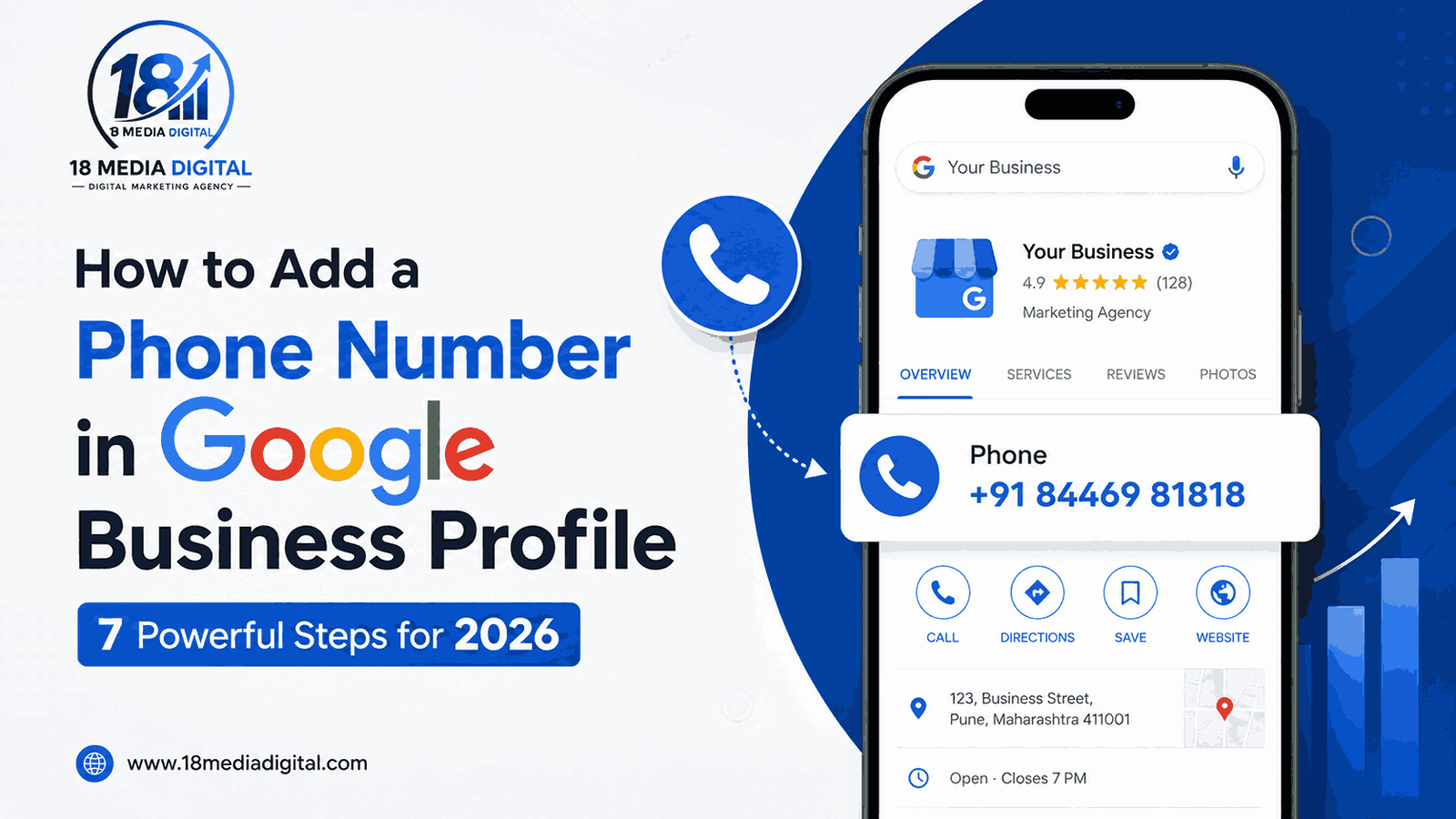

How to Add a Phone Number in Google Business Profile: 7 Powerful Steps for 2026
Ever Googled your own business and realized customers can’t find a working number to call you? You’re not alone.
One of the most common — and most frustrating — local SEO issues we see at 18 Media Digital is business owners struggling with how to add a phone number in Google Business Profile, getting stuck somewhere between “Edit Profile” and a blank contact field.
A missing or broken phone number doesn’t just look unprofessional. It quietly kills calls, leads, and customer trust, often without the business owner even realizing it’s happening.
In this guide, we’ll walk you through exactly how to add a phone number in Google Business Profile, step by step, on desktop and mobile. We’ll also cover the most common errors people run into, and share a real case study of how our team helped a Pune-based client fix this exact problem in under 48 hours.
Why Your Google Business Profile Phone Number Matters More Than You Think
Your phone number is one of the three pillars of local SEO — Name, Address, Phone (NAP). Get any one of them wrong, and Google starts trusting your listing a little less.
Here’s what a correctly added phone number does for your business:
- Enables the click-to-call button on mobile searches
- Builds trust signals that support your local pack rankings
- Helps Google verify your business is legitimate and active
- Reduces missed inquiries during peak business hours
- Improves your position when customers search “near me”
Industry data on local search behavior suggests that a large share of “near me” searchers call a business within 24 hours of finding it — but only if that call button actually works. That’s exactly why learning how to add a phone number in Google Business Profile correctly (and keeping it that way) is one of the highest-ROI, lowest-effort fixes in local marketing.

How to Add a Phone Number in Google Business Profile (Step-by-Step Guide)
Let’s get into the actual walkthrough. This is the exact process we use for every client at 18 Media Digital.
Step 1: Sign In to Your Google Business Profile Manager
Go to business.google.com and sign in with the Google account linked to your business listing. If you manage multiple locations, make sure you’re logged into the correct account — this is a common reason people think they can’t add a number when really they’re just in the wrong profile.
Step 2: Select the Correct Business Location
If you manage more than one branch or outlet, click on the specific location you want to update. Each location on Google Business Profile has its own individual contact settings.
Step 3: Click “Edit Profile”
On your Business Profile dashboard, look for the “Edit profile” button, usually near your business name and category.
Step 4: Open the “Contact Information” Tab
Inside the edit menu, click on “Contact information.” This is where Google keeps your website, phone number, and additional numbers.
Step 5: Enter Your Primary Business Phone Number
Type your business number into the “Phone number” field. A few quick rules:
- Use a local number where possible — Google favors local area codes for local search relevance.
- Avoid call-forwarding or virtual numbers not linked to your actual business location.
- Double-check the country code is correct, especially if you operate across regions.
Step 6: Add a Secondary Number (Optional)
If your business has a separate helpline, WhatsApp Business number, or sales line, Google allows you to add an additional phone number field. This step is optional but genuinely useful — it gives customers more than one way to reach you.
Step 7: Save and Confirm
Click “Save.” Changes to your phone number are usually reflected within a few minutes to a few hours, though some updates can take up to a couple of days to fully sync across Google Search and Maps.
That’s the complete answer to how to add a phone number in Google Business Profile on desktop — but a lot of business owners manage their listings entirely from their phones, so let’s cover that too.
For more information visit – Stand out on Google with a free Business Profile
How to Add a Phone Number in Google Business Profile on the Mobile App
If you’re managing your listing on the go, here’s how to add a phone number in Google Business Profile using the Google Maps app:
- Open the Google Maps app and tap your profile icon in the top right.
- Tap “Your Business Profile.”
- Tap “Edit profile,” then “Business information.”
- Scroll to “Contact” and tap the phone number field.
- Enter or update your number, then tap “Save.”
The mobile process mirrors the desktop version closely, so once you understand how to add a phone number in Google Business Profile in one place, switching between the two is effortless.
One tip we give every client: keep the Google Maps or Google Business Profile app installed permanently, not just for setup. Quick edits — like updating hours during a festival or fixing a typo in your number — are far faster from your phone than logging into a browser.
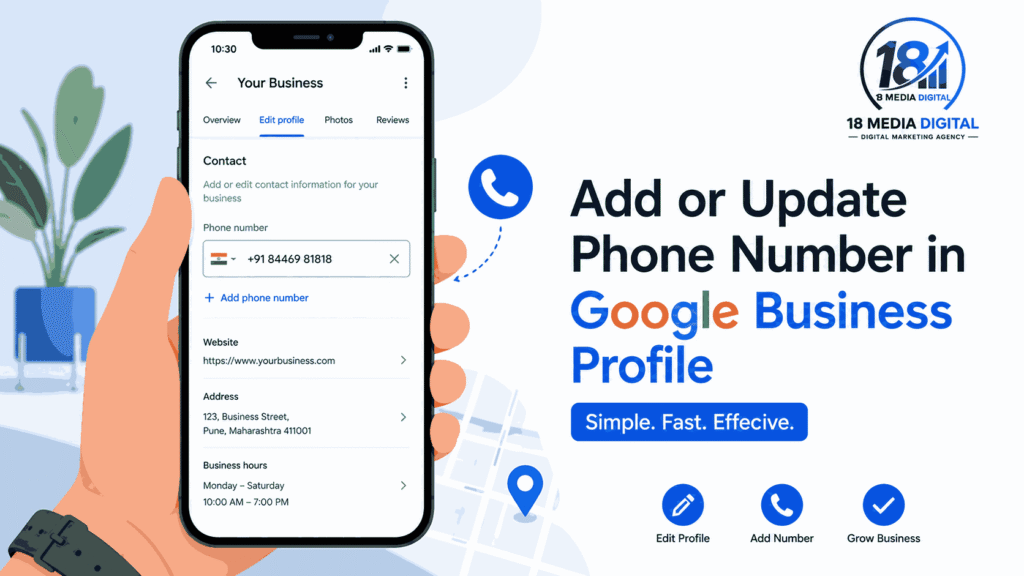
Common Problems When Adding a Phone Number in Google Business Profile (And How to Fix Them)
Even when you follow every step correctly, Google’s system doesn’t always cooperate. Here are the issues we see most often.
Problem 1: The Phone Number Field Won’t Save
This usually happens because of an unsupported number format, an ad blocker interfering with the dashboard, or a temporary Google sync glitch. Try clearing your cache, disabling extensions, and re-entering the number using the standard country code format.
Problem 2: Google Flags or Removes Your Number
Google sometimes auto-removes numbers it suspects are call-forwarding, spam-linked, or duplicated across unrelated listings. If this happens after you’ve tried adding a phone number in Google Business Profile, check that the number isn’t already tied to a different, older listing.
Problem 3: Multiple Locations Show the Same Number
Chains and franchises often run into this. Google prefers a unique, direct line per location. Shared numbers across branches can hurt individual listing credibility and confuse the local pack algorithm.
Problem 4: The Number Doesn’t Match Your Website or Directory Listings
This is a NAP consistency issue. If the number you’ve added doesn’t match what’s listed on your website, Justdial, or other directories, Google may deprioritize the listing in local rankings.
- Audit your website footer and contact page
- Check directory listings like Justdial, Sulekha, and IndiaMart
- Update any outdated numbers on social media bios
These are exactly the kinds of issues that make how to add a phone number in Google Business Profile feel simple in theory but frustrating in practice — which brings us to a real example.
Real Client Case Study: How 18 Media Digital Solved a Google Business Profile Phone Number Problem
The Problem
A Pune-based multi-specialty clinic (name withheld for client confidentiality) came to 18 Media Digital with a specific complaint: patients kept saying the “Call” button on their Google listing wasn’t working.
Many business owners search for how to add a phone number in Google Business Profile when setting up their listing.
The clinic’s marketing coordinator had tried repeatedly to figure out how to add a phone number in Google Business Profile, entering the correct number multiple times. Each time, it would either disappear within a day or show a completely different, outdated number that used to belong to a previous tenant at the same address. Understanding how to add a phone number in Google Business Profile can make it easier for customers to contact a business.
Our Diagnosis
When our team audited the listing, we found three overlapping issues:
- The Google Business Profile had been claimed years earlier under an old owner’s personal Gmail account, which no one at the clinic had access to.
- A duplicate, unclaimed listing existed for the same address, still showing the previous business’s number.
- The clinic’s website listed the number in an inconsistent format (missing the country code), which was quietly confusing Google’s matching system.
The Fix
Here’s how we resolved it, step by step:
- Regained account access through Google’s ownership transfer request process, since the original claiming account was inactive.
- Flagged and merged the duplicate listing so Google recognized only one authoritative profile for that address.
- Standardized the phone number format across the website, Google Business Profile, and major directories to fix the NAP inconsistency.
- Re-entered the phone number in the corrected Contact Information section and monitored it daily for the first week to catch any auto-reversion.
The Results
Within 48 hours of completing the fix, the correct number was live and stable. Within the following month, the clinic reported:
- A noticeable increase in click-to-call actions from their Google listing
- Fewer patient complaints about “wrong number” mix-ups
- Improved visibility in the local map pack for their core service keywords
This case is a good reminder that how to add a phone number in Google Business Profile isn’t always a five-minute task — sometimes it’s a symptom of a deeper listing ownership or consistency issue that needs an expert eye. If you manage a business listing, you may need to learn how to add a phone number in Google Business Profile.
Business owners often want to know how to add a phone number in Google Business Profile correctly.
How Adding a Phone Number in Google Business Profile Impacts Your Local Rankings
Google ranks local listings using three core factors: relevance, distance, and prominence. Your phone number quietly touches all three.
When you correctly complete the process of how to add a phone number in Google Business Profile, you’re not just giving customers a way to call — you’re feeding Google a trust signal it uses to validate that your business is real, active, and reachable.
Here’s how it plays into your ranking:
- Prominence: A verified, consistent number signals an established, trustworthy business.
- Relevance: Google cross-checks your number against directories to confirm your business category and legitimacy.
- Click-to-call data: Every tracked call from your listing tells Google your profile is actively driving real engagement, not sitting dormant.
This is exactly why so many businesses that skip or botch how to add a phone number in Google Business Profile correctly see stagnant rankings, even when everything else on their listing looks fine.

Best Practices to Keep Your Google Business Profile Phone Number Working
Once you’ve solved how to add a phone number in Google Business Profile, the next challenge is keeping it stable. Follow these best practices:
- Use a direct, local number rather than a toll-free or forwarding number when possible.
- Check your listing monthly for unauthorized edits — Google allows suggested edits from the public, which can occasionally overwrite your number.
- Keep one consistent format everywhere your business is listed online.
- Avoid multiple listings for the same location; request merges immediately if you spot duplicates.
- Verify ownership access is tied to a business email your team actively monitors, not a personal or outdated account.
Top Mistakes to Avoid When Adding a Phone Number in Google Business Profile
Even experienced marketers get this wrong. Watch out for these common missteps:
- Using a call-tracking number as your primary listing number. Google can flag dynamic tracking numbers as spam if they change frequently.
- Copy-pasting a number with extra characters (like brackets or dashes) that Google’s field doesn’t recognize.
- Forgetting to update the number after a office move or rebrand, leaving an old, dead line live on the profile.
- Assuming the update is permanent. Public “suggested edits” can silently alter your number days or weeks later if you don’t check periodically.
- Skipping a website cross-check. Getting how to add a phone number in Google Business Profile right on Google but wrong on your own website undoes the NAP consistency you just fixed.
Avoiding these mistakes is often the real difference between a phone number that sticks and one you’ll be re-adding every few weeks.
Why NAP Consistency Matters Beyond Just Adding a Phone Number in Google Business Profile
Search engines cross-check your business details across the web before deciding how much to trust — and rank — your listing. Even after successfully adding a phone number in Google Business Profile, mismatched details elsewhere can undo that trust.
Think of NAP consistency as your business’s digital fingerprint. If your fingerprint looks different on every document, verification systems (in this case, Google) get suspicious.
Knowing how to add a phone number in Google Business Profile can help keep your contact details up to date.
Many businesses explore how to add a phone number in Google Business Profile when updating their online information.
Understanding how to add a phone number in Google Business Profile is an important part of managing a business listing.Businesses can benefit from knowing how to add a phone number in Google Business Profile when their contact details change.
Business owners often learn how to add a phone number in Google Business Profile as part of managing their online presence.Many beginners look for guidance on how to add a phone number in Google Business Profile.
Conclusion: Get Expert Help With Your Google Business Profile
Knowing how to add a phone number in Google Business Profile is one thing — keeping it accurate, verified, and working across every platform is where most businesses actually struggle.
If your Google listing has been giving you the same headaches as our clinic client, you don’t have to untangle it alone. The team at 18 Media Digital, specializes in exactly this kind of local SEO troubleshooting — from Google Business Profile audits to full-scale local search strategy.
Ready to fix your Google Business Profile for good?
Visit 18 Media Digital or call us directly at 84469-81818 to get a free listing audit today.
For exploring our services check this out – Digital Marketing Agency in Pune: 10 Best Strategies for Amazing Business Growth
FAQs: How to Add a Phone Number in Google Business Profile
Q1: How long does it take for a phone number to show up after I add it to Google Business Profile?
A: Usually a few minutes to a few hours, though some changes can take up to 48–72 hours to fully reflect across Google Search and Maps.
Q2: Why does my phone number keep disappearing after I add it to Google Business Profile?
A: This is often caused by duplicate listings, public “suggested edits,” or an unverified/inactive owner account. A full listing audit usually identifies the root cause.
Q3: Can I add more than one phone number in Google Business Profile?
A: Yes. Google allows a primary number and an additional secondary number, useful for separate departments or a WhatsApp Business line.
Q4: Do I need to verify my business again after adding a phone number in Google Business Profile?
A: No, updating your phone number doesn’t require re-verification, unless Google flags the listing for suspicious activity.
Q5: What should I do if I can’t figure out how to add a phone number in Google Business Profile myself?
A: Reach out to a local SEO specialist. Agencies like 18 Media Digital can audit, fix, and stabilize your listing far faster than trial and error.
Q6: Does adding a phone number in Google Business Profile directly improve my Google ranking?
A: Not directly by itself, but it strengthens trust and prominence signals, and enables click-to-call tracking — both of which support stronger local rankings over time.
Q7: Can I use a mobile number when adding a phone number in Google Business Profile?
A: Yes, as long as it’s a number your business actively answers. A landline is preferred where available, but a dedicated business mobile number works fine.



Leave a Reply